Over months of viewing, streaming apps quietly accumulate temporary files: thumbnails, partial downloads, and playback buffers. In this Siiir TV app, that cache is normally helpful — it makes categories load faster — but when it grows stale or bloated it can cause the opposite: slow menus, broken images, and a phone that complains about storage. Clearing the cache is the standard reset, and done correctly it costs you nothing but a few seconds of reloading.
The key is knowing what to clear. Android offers two very different buttons — Clear Cache and Clear Data — and choosing the wrong one wipes your settings. This guide explains both, when to use each, and how to keep storage healthy afterwards.
Cache vs Data: Know the Difference
The cache holds disposable files the app can rebuild: image thumbnails, temporary stream data, and similar working files. Clearing it is safe and reversible. The app simply downloads fresh copies as you browse, so the only cost is slightly slower loading the first time you open each section afterwards.
App data is everything else: your settings, favourites, sign-in state, and preferences. Clearing data resets the app to a freshly installed state. That is a legitimate last-resort fix for stubborn problems, but it should never be the first step, and it is not what this routine maintenance guide recommends.
An analogy helps: the cache is the app's workbench clutter — useful while working, harmless to sweep away. Data is the filing cabinet — your preferences and sign-ins — which you only empty deliberately. Every Android app follows the same model, so this knowledge transfers to every app on your phone.
How to Clear the Cache
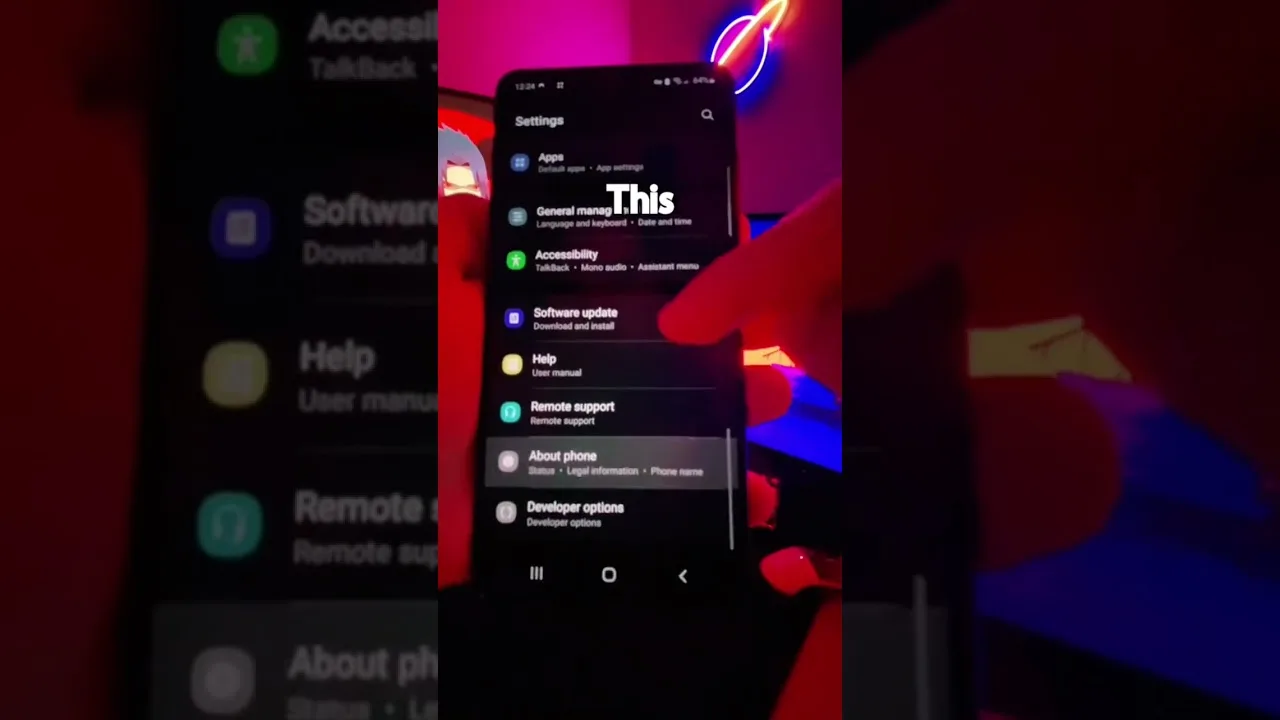
Open Android Settings, go to Apps, find Siiir TV, and open Storage. Tap Clear Cache — not Clear Data — and confirm. The whole process takes seconds and does not require reopening or reconfiguring anything. Return to the app and use it normally; sections will repopulate their thumbnails as you browse.
If the app was misbehaving — images not loading, categories showing outdated content — test it now before doing anything else. Cache clearing resolves a large share of these odd, hard-to-describe glitches, which is why it appears in almost every troubleshooting routine, including our not working fixes.
Freeing Storage Beyond the Cache
If storage pressure is your real problem, the cache is only one contributor. Downloaded files in your browser's folder, old APK files from previous installs, and other apps' caches usually outweigh it. Android's storage screen ranks apps by size, making the biggest offenders easy to find.
On genuinely tight devices, pair this tidy-up with the broader habits in our low-end phone performance guide: keeping a gigabyte or two free improves everything the phone does, not just streaming. Delete watched downloads promptly and let cloud backup carry your photos.
Messaging apps are the silent giants. Years of photos, videos, and voice notes inside chat apps routinely exceed 5 GB on family phones. Clearing a single group chat's media can free more space than every app cache combined. Android's storage breakdown makes these giants obvious once you look.
How Often Should You Do This?
For most users, clearing the cache every month or two — or whenever the app starts feeling sluggish — is plenty. There is no benefit to daily clearing; the cache exists to speed things up, and constantly emptying it forces the app to re-download thumbnails and data it would otherwise reuse, which wastes bandwidth.
Treat it as part of a small maintenance rhythm alongside updating the app and restarting the phone occasionally. Together, those three habits keep Siiir TV feeling as fast in month six as it did on day one.
Set a phone-wide habit: when storage warnings appear, treat them as a queue — cache first, downloads second, chat media third, unused apps fourth. Ten minutes with that checklist restores breathing room on almost any device without deleting a single thing you actually use.
Final Thoughts
Clear Cache is your friend; Clear Data is the emergency option. Learn the difference, clear the cache when the app feels stale or storage runs low, and keep a little free space on the device at all times. That is all the storage management Siiir TV really needs.