Buffering is the most frustrating problem in any streaming app: the picture freezes, the circle spins, and the moment is gone. In Siiir TV application, buffering is rarely caused by one single thing. It is usually a chain of small issues — a weak Wi-Fi signal, an overloaded phone, or a stream quality your connection cannot sustain — and fixing it means finding the weakest link.
The good news is that most buffering can be reduced a lot with methodical checks. Work through the sections below in order instead of changing everything at once, so you can tell which step actually solved the problem on your device.
It helps to separate two kinds of buffering. Startup buffering — a few seconds of loading when you tap a channel — is normal and healthy. Mid-stream buffering, where playback stops after it has started, is the real problem. Everything in this guide targets the second kind, because that is the kind that ruins matches and films.
Start With Your Connection
Streaming video needs a steady connection more than a fast one. A speed test might show a good number while the actual signal in your room is unstable. Move closer to the router, or switch from a crowded 2.4 GHz network to a 5 GHz one if your router offers both. Walls and distance matter more than most people expect.
Also check who else is using the network. A family member downloading large files or playing online games can starve your stream without anyone noticing. If buffering happens mainly in the evening, shared bandwidth is a likely cause rather than the app itself.
Run one quick experiment before changing any settings: stream the same channel on a different device connected to the same Wi-Fi, such as a laptop or a second phone. If the other device also stutters, the network is the problem and no app setting will fix it. If the other device plays perfectly, the issue sits with your phone, and the later sections of this guide apply.
Lower the Stream Quality
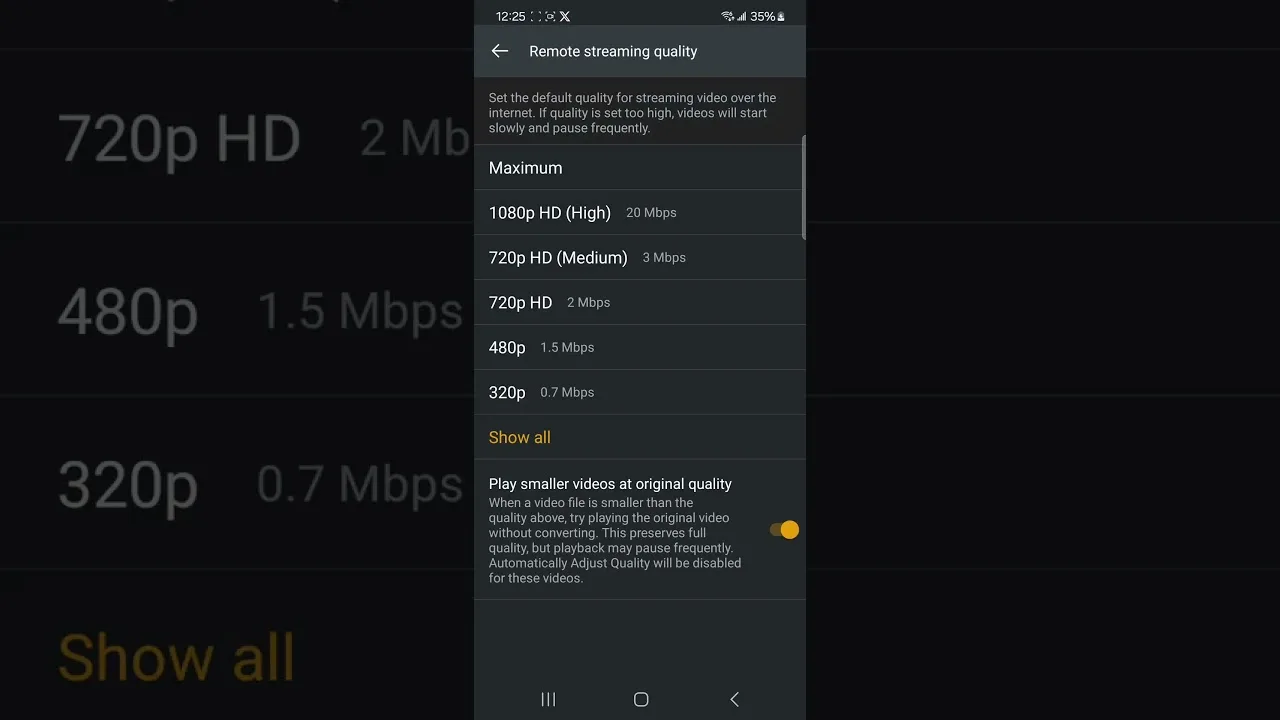
If your connection cannot keep up, reduce the playback quality inside the app or choose a lower-quality stream when one is offered. A smooth standard-definition picture is always better than a high-definition picture that stops every twenty seconds. Quality settings exist precisely for connections that fluctuate.
This is also where device limits show up. Older phones struggle to decode heavy streams while running background apps at the same time. The hardware notes in our device compatibility guide explain which phones handle demanding streams comfortably.
Remember that quality and resolution are linked to the device screen as well. On a phone held at normal distance, a mid-level quality setting usually looks far better than people expect. Save the top quality for the TV or tablet, where the larger display actually reveals the extra detail you are spending bandwidth on.
A practical routine for chronic buffering is to change one variable per evening. Night one: move closer to the router. Night two: drop the quality a level. Night three: close background apps first. Within a few days you will know your personal fix, because the improvement will line up with exactly one change — and that knowledge serves you on every streaming app, not just this one.
Close Background Apps and Restart
Phones quietly accumulate background processes: social apps syncing, browsers with twenty tabs, and old streaming sessions. Each one takes memory and network attention. Before a long viewing session, close what you are not using and give the app a clean start.
A full phone restart once in a while also helps more than people expect. It clears temporary files, resets the network connection, and stops runaway processes. If buffering returns after days of smooth playback, a restart is the fastest first test before deeper troubleshooting.
Also look at automatic updates and cloud backups. Phones often schedule photo uploads and app updates for the evening, exactly when people sit down to watch. Pausing large uploads during a big match, or scheduling them for overnight, removes a hidden source of competition for your bandwidth.
When Buffering Is Not Your Fault
Sometimes the stream source itself is overloaded, especially during major live events when thousands of viewers connect at once. If one channel buffers while others play smoothly, the problem is that channel, not your setup. Switching to another category or returning later is the honest fix in that case.
General problems like the app failing to open or channels disappearing entirely are a different category of issue. Those are covered step by step in our Siiir TV not working troubleshooting guide.
A useful test for source problems is timing. If a channel buffers at the same moments for viewers in different households — the start of a popular match is the classic case — the source is saturated. In that situation, patience genuinely is the fix, and switching to a less-demanded category for a while beats fighting with settings that were never the problem.
Final Thoughts
Buffering is a symptom, not a verdict on the app. Strengthen the connection, match quality to your bandwidth, keep the phone's workload light, and recognise when the source itself is busy. With those habits, most users find Siiir TV plays smoothly for everyday viewing.